Introduction
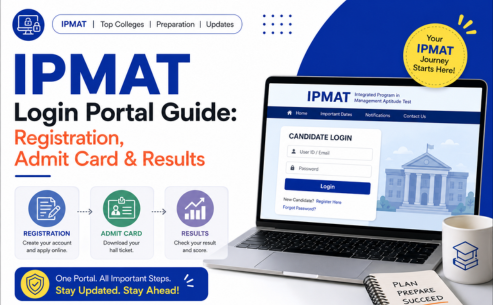
The IPMAT login portal is one of the most important platforms for students preparing for the Integrated Programme in Management (IPM) offered by premier IIMs. From completing the application process to downloading the admit card and checking results, every major activity is performed through the portal.
Many candidates face difficulties while accessing their accounts, retrieving passwords, downloading admit cards, or checking result status. Understanding how the portal works can help applicants avoid last-minute issues and complete every stage of the admission process smoothly.
In this comprehensive guide, we will explain everything about the IPMAT login portal, including registration procedures, login credentials, admit card download process, result access, password recovery, troubleshooting, and frequently asked questions.
What is the IPMAT Login Portal?
The IPMAT login portal is an online dashboard provided by the conducting institute where candidates can access all exam-related services.
The portal serves as a centralised platform for:
- New candidate registration
- Application form submission
- Fee payment
- Document upload
- Application correction (if permitted)
- Admit card download
- Result checking
- Scorecard download
- Admission updates
Every applicant receives login credentials after successful registration. These credentials are used throughout the admission cycle.
Importance of the IPMAT Login Portal
The portal plays a crucial role in the entire admission process.
Before the Exam
Candidates use the portal for:
| Activity | Purpose |
| Registration | Create applicant account |
| Application Submission | Fill personal and academic details |
| Fee Payment | Complete registration process |
| Document Upload | Submit photographs and signatures |
| Form Review | Verify application status |
During the Exam Phase
The portal helps candidates:
- Download admit cards
- Check examination details
- Verify test centre information
- Access important notifications
After the Exam
Candidates can:
- Check results
- Download scorecards
- Monitor selection status
- View interview updates
- Access admission instructions
Because every stage depends on portal access, candidates should keep their login credentials secure.
IPMAT Registration Login Process
The first interaction with the portal begins through the IPMAT registration login process.
Step 1: Registration
Candidates must first register by providing:
- Full name
- Email address
- Mobile number
- Date of birth
After successful registration, the system generates:
- Application number/User ID
- Password
These details are sent through registered communication channels.
Step 2: Log in
Once registration is completed, candidates can access the dashboard by entering the following:
| Credential | Description |
| User ID/Application Number | Generated during registration |
| Password | Created or assigned during registration |
Step 3: Dashboard Access
After successful login, applicants can:
- Complete application form
- Upload documents
- Make fee payment
- Track application progress
The IPMAT registration login remains active throughout the application period.
Documents Required Before Logging In
Candidates should keep certain documents ready before accessing the portal.
Personal Information
- Full name
- Date of birth
- Category details
- Contact information
Academic Information
- Class 10 marks
- Class 12 marks
- Board details
- Passing year
Digital Documents
| Document | Typical Requirement |
| Passport-size photo | Recent photograph |
| Signature | Clear scanned signature |
| Identity proof | If required |
| Category certificate | Applicable candidates only |
Keeping these documents ready helps complete the application quickly.
How to Complete the IPMAT Application Through the Portal
After using the IPMAT registration login, candidates can fill out the application form.
Personal Details Section
Enter:
- Candidate name
- Parent details
- Gender
- Category
- Nationality
Academic Details Section
Provide:
- School information
- Board details
- Marks obtained
- Passing year
Communication Details
Include:
- Email ID
- Mobile number
- Address
Upload Documents
Candidates must upload:
- Photograph
- Signature
- Supporting certificates
Fee Payment
After reviewing all details:
- Proceed to payment section.
- Select payment method.
- Complete transaction.
- Save payment confirmation.
Successful payment generally confirms application submission.
Common Login Issues During Registration
Many candidates experience login-related problems.
Incorrect Password
Possible causes include:
- Typing errors
- Case-sensitive characters
- Incorrect password entry
Wrong Application Number
Ensure the application number entered matches the registered account.
Browser Issues
Try:
- Clearing cache
- Refreshing page
- Using another browser
Server Overload
Heavy traffic close to deadlines may slow portal performance.
Candidates should avoid waiting until the final day for registration.
IPMAT Admit Card Login Guide
The IPMAT admit card login process allows candidates to access their hall ticket before the examination.
The admit card is a mandatory document and must be downloaded within the specified period.
Steps to Access Admit Card
Step 1
Visit the login page.
Step 2
Enter:
- Application number/User ID
- Password
Step 3
Open the admit card section.
Step 4
Download the admit card.
Step 5
Print multiple copies for future use.
The IPMAT admit card login process remains active until the examination date.
Information Available on the Admit Card
Candidates should verify every detail after downloading.
Personal Information
- Candidate name
- Roll number
- Photograph
Exam Information
| Detail | Description |
| Exam Date | Scheduled test date |
| Reporting Time | Required arrival time |
| Test Center | Assigned exam venue |
| Exam Duration | Test timing |
Instructions
The admit card also contains:
- Exam guidelines
- Reporting instructions
- Allowed items
- Prohibited items
Any discrepancy should be reported immediately.
Problems While Downloading the Admit Card
Forgot Login Credentials
Use the password recovery option.
Website Not Loading
Try:
- Different browser
- Different device
- Off-peak hours
Blank Admit Card Page
Refresh the page and attempt login again.
Missing Admit Card Option
Wait for official release and monitor notifications.
Candidates should not panic if the admit card section is unavailable before the release date.
Exam Day Instructions Related to Admit Card
After completing the IPMAT admit card login, candidates should:
- Print the admit card clearly
- Carry a valid photo ID
- Reach the centre early
- Follow reporting guidelines
Without an admit card, candidates are generally not allowed to appear for the examination.
IPMAT Result Login Process
After the examination, candidates use the IPMAT result login facility to access their scores.
Results are usually released through the candidate dashboard.
Steps to Check Result
Step 1
Visit the results login page.
Step 2
Enter:
- Application number
- Password
Step 3
Access the result section.
Step 4
View scorecard.
Step 5
Download and save the result.
The IPMAT result login process helps candidates track their performance and selection status.
Details Mentioned in the Result
The result page generally includes:
- Candidate name
- Application number
- Sectional scores
- Overall score
- Percentile (if applicable)
- Selection status
Candidates should download and preserve the scorecard for future admission rounds.
What Happens After Result Declaration?
The admission process usually continues through several stages.
Interview Shortlisting
Candidates meeting cutoff requirements may receive interview calls.
Personal Interview
Shortlisted candidates participate in the PI process.
Merit List Preparation
Institutes prepare final merit lists based on:
- Entrance test score
- Interview performance
- Academic profile
- Additional evaluation criteria
Admission Offer
Selected candidates receive admission offers through official channels.
Portal access remains important even after results are announced.
How to Reset Forgotten Password
One of the most common concerns among applicants is password recovery.
Step-by-Step Password Reset Process
Step 1
Open the login page.
Step 2
Select “Forgot Password”.
Step 3
Enter:
- Registered email ID
- Application number
- Registered mobile number (if required)
Step 4
Verify identity.
Step 5
Create a new password.
Tips for Creating a Strong Password
Use:
- Uppercase letters
- Lowercase letters
- Numbers
- Special characters
Avoid sharing passwords with others.
Security Tips for Using the IPMAT Login Portal
Candidates should protect their accounts from unauthorised access.
Best Practices
- Keep credentials confidential.
- Avoid public computers.
- Log out after every session.
- Update passwords when required.
- Save credentials securely.
Avoid Common Mistakes
Do not:
- Share passwords on social media
- Use weak passwords
- Store credentials carelessly
- Ignore security notifications
Proper account management ensures uninterrupted access throughout the admission cycle.
Difference Between Registration Login, Admit Card Login and Result Login
Many students assume these are separate systems.
In most cases, the same credentials are used for all stages.
| Portal Function | Purpose |
| IPMAT Registration Login | Application submission |
| IPMAT Admit Card Login | Hall ticket download |
| IPMAT Result Login | Scorecard access |
The dashboard changes according to the admission stage, but login credentials generally remain the same.
Important Precautions While Using the Portal
To avoid technical issues:
Before Registration
- Verify internet connectivity.
- Keep documents ready.
- Use updated browsers.
Before Admit Card Download
- Check official announcements.
- Verify login credentials.
Before Result Access
- Keep the application number handy.
- Download the scorecard immediately.
Throughout the Process
- Monitor notifications regularly.
- Save all important documents.
- Keep backup copies.
These simple precautions can prevent unnecessary stress during crucial admission stages.
Benefits of Understanding the IPMAT Login Portal
A clear understanding of the IPMAT login portal provides several advantages.
Better Application Management
Candidates can track progress efficiently.
Reduced Errors
Knowing the process minimises application mistakes.
Faster Access
Quick login helps during important deadlines.
Smooth Admission Journey
From registration to admission confirmation, the portal remains the central point of communication.
Therefore, every IPMAT aspirant should become familiar with the login system well before deadlines approach.
Conclusion
The IPMAT login portal is the backbone of the entire IPMAT admission process. Whether you are completing registration, downloading an admit card, checking results, or monitoring admission updates, the portal serves as the primary platform for candidate interaction.
Understanding the IPMAT registration login, IPMAT admit card login, and IPMAT result login processes can help applicants avoid technical issues and complete every stage smoothly. Candidates should keep their credentials secure, monitor announcements regularly, and maintain copies of all important documents throughout the admission cycle.
By using the portal effectively, aspirants can focus more on preparation and less on administrative challenges.
Frequently Asked Questions (FAQs)
1. How can I access the IPMAT login portal?
You can access the IPMAT login portal using the credentials generated during registration. Typically, you need your application number or user ID along with your password.
2. What credentials are required to log in?
Candidates generally require the following:
- Application number/User ID
- Password
These credentials are provided after successful registration.
3. How do I reset a forgotten password?
Use the “Forgot Password” option available on the login page. Follow the verification process and create a new password.
4. Can I edit my application through the portal?
Application editing depends on whether a correction window is provided. If enabled, candidates can modify permitted fields during the correction period.
5. How do I download my admit card?
Log in to the portal using your credentials, open the admit card section, and download the hall ticket once it is released.
6. How can I check my result online?
Use the IPMAT result login section, enter your credentials, and access your scorecard from the candidate dashboard.
7. What should I do if the portal is not working?
Try refreshing the page, clearing browser cache, switching browsers, or accessing the portal during non-peak hours. If the issue persists, wait for official updates.
8. Can I access the portal after the exam?
Yes. Candidates generally need portal access after the exam to check results, download scorecards, view interview updates, and track admission status.
9. Is there a separate login for IIM Indore and Rohtak?
Yes. Since the admission processes are conducted separately, candidates typically use the respective portal associated with the institute they applied to.
10. What details should I keep ready before logging in?
Keep the following ready:
- Application number/User ID
- Password
- Registered email ID
- Mobile number
- Required documents for application or verification purposes